
How to pull scraped data into Google Sheets with Apps Script
A lot of scraping ends in a spreadsheet anyway. Google Sheets can call the scrape.land API itself through Apps Script, the JavaScript environment built into every Google spreadsheet, so the rows land where your team already works, with no server to run. This tutorial writes a short script that fetches a practice catalog, writes one row per product, keeps your API key out of the code, and refreshes itself on a schedule.
Step 1: store the key in Script Properties
Open your sheet, then Extensions > Apps Script. Do not paste the key into the code: code gets copied, pasted into chats and shared with a copy of the sheet, and the key would travel with it. Instead, in the Apps Script editor open Project Settings (the gear icon), scroll to Script Properties, and add a property named SCRAPELAND_KEY with your key as the value. The code reads it at run time.
Step 2: the script
Paste this into Code.gs. It asks the API for the title, price and stock of every book on one catalog page of books.toscrape.com, and rewrites a tab called Books with the result.
const API = "https://scrape.land/v1/extract";

function refreshBooks() {
  const key = PropertiesService.getScriptProperties().getProperty("SCRAPELAND_KEY");
  if (!key) throw new Error("Add SCRAPELAND_KEY in Project Settings > Script Properties");

  const body = {
    url: "https://books.toscrape.com/catalogue/page-1.html",
    fields: {
      books: {
        css: "article.product_pod",
        fields: { title: "h3 a@title", price: ".price_color", stock: ".availability" },
      },
    },
  };
  const res = UrlFetchApp.fetch(API, {
    method: "post",
    contentType: "application/json",
    headers: { "X-Api-Key": key },
    payload: JSON.stringify(body),
    muteHttpExceptions: true, // read the API's error message instead of a generic one
  });
  if (res.getResponseCode() !== 200) {
    throw new Error("scrape.land " + res.getResponseCode() + ": " + res.getContentText());
  }

  const books = JSON.parse(res.getContentText()).data.books;
  const rows = books.map((b) => [b.title, b.price, b.stock, new Date()]);

  const ss = SpreadsheetApp.getActiveSpreadsheet();
  const sheet = ss.getSheetByName("Books") || ss.insertSheet("Books");
  sheet.clearContents();
  sheet.getRange(1, 1, 1, 4).setValues([["Title", "Price", "Stock", "Fetched at"]]);
  sheet.getRange(2, 1, rows.length, 4).setValues(rows);
}
Click Run with refreshBooks selected. The first run asks you to authorize the script to connect to an external service and edit the spreadsheet; that is Google's standard prompt for UrlFetchApp and SpreadsheetApp.
What lands in the sheet
This is the exact request the script sends. We ran it against the API and it returned twenty books; here are the first eight, in the columns the script writes:
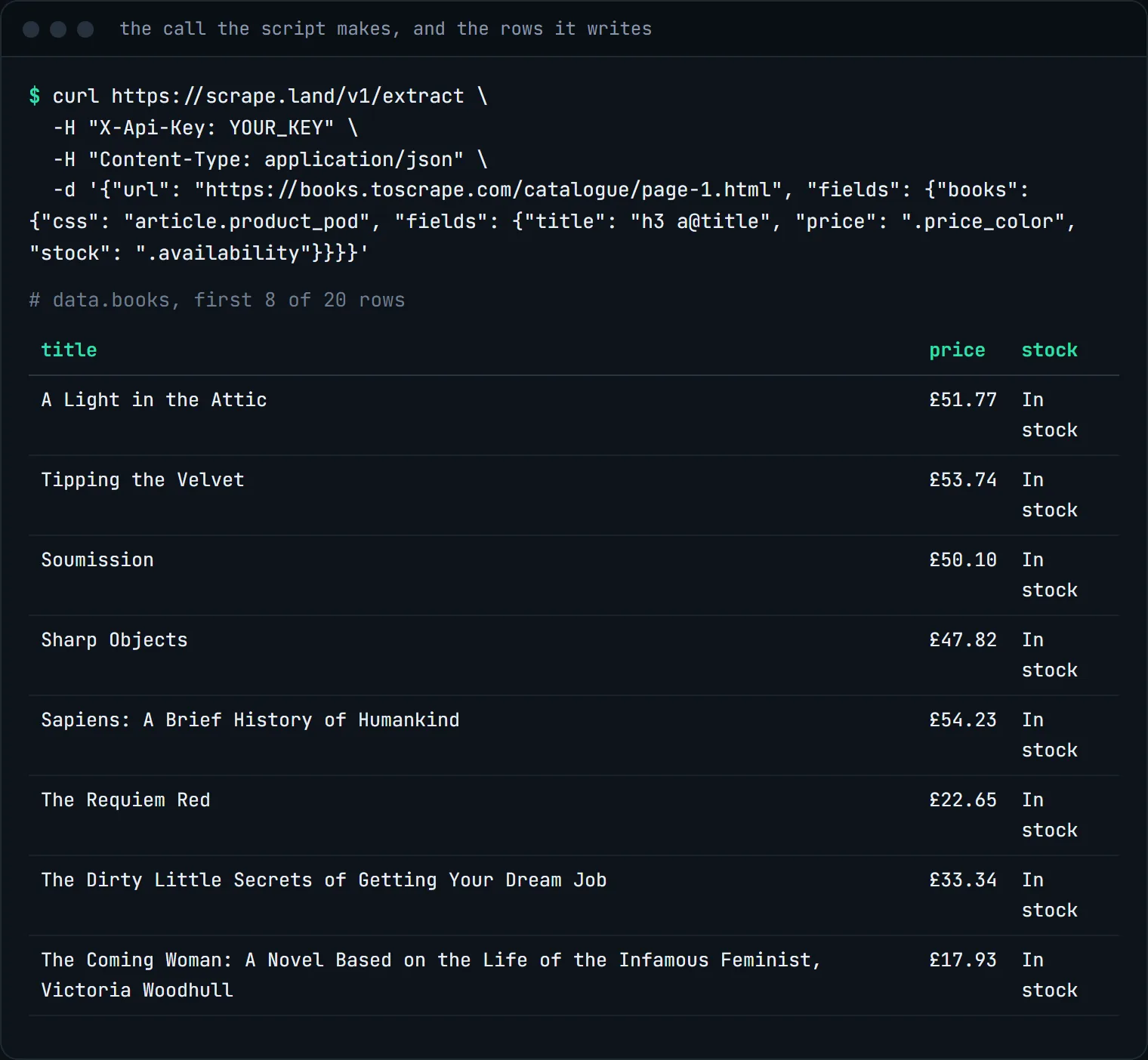
Prices arrive as text ("£51.77"), exactly as the page shows them. To get numbers you can sum, either strip the symbol in the script (parseFloat(b.price.replace(/[^0-9.]/g, ""))) or, on the Scale plan and up, use an AI prompt with a schema that declares "price": "number" (see AI schema extraction).
Step 3: refresh on a schedule
Apps Script can run a function on a timer. Run this once to create a daily trigger, or add it from the Triggers page (the clock icon) in the editor:
function installDailyTrigger() {
  ScriptApp.newTrigger("refreshBooks").timeBased().everyDays(1).atHour(6).create();
}
To keep a history instead of overwriting, replace clearContents() with sheet.getRange(sheet.getLastRow() + 1, 1, rows.length, 4).setValues(rows) so every run appends. That turns the sheet into a simple price tracker; monitoring prices on a schedule covers the same idea with cron and a CSV.
A menu for your team
function onOpen() {
  SpreadsheetApp.getUi().createMenu("Scraping")
    .addItem("Refresh books", "refreshBooks")
    .addToUi();
}
With this in the same file, the sheet gets a Scraping menu, and anyone with edit access can refresh the data without opening the editor. Keep in mind that editors can also open Project Settings and read the key there, so share edit access only with people you would trust with the key, and give everyone else view access.
Tips
- Many URLs: put URLs in a column, read them with
getValues(), and send them in chunks of up to 20 to/v1/batch(see batch scraping). - Long jobs: Apps Script limits how long one execution may run. For slow or rendered pages, submit an async job and read the result on the next run (see async jobs).
- Local businesses: the same pattern works with
POST /v1/placesto fill a lead sheet (see finding local businesses).
What it costs
Each run of the script is one plain fetch with CSS fields: 1 request unit. A daily refresh is about 30 units a month, well inside the Free plan's 1,000 requests. See pricing.
Next steps
Selectors and endpoints are in the docs. Create a free account, paste the key into Script Properties, and run the script.