
How to take a full-page screenshot of any URL
Screenshots are useful for visual monitoring, archiving what a page said on a given day, QA of your own site, or giving a person (or a model) a look at a page instead of its HTML. This tutorial takes a screenshot of a page with one API call, first of the visible viewport and then of the full scroll height, and shows how to click a cookie banner away before the shot. Every image in this post that shows a web page was taken this way.
The request
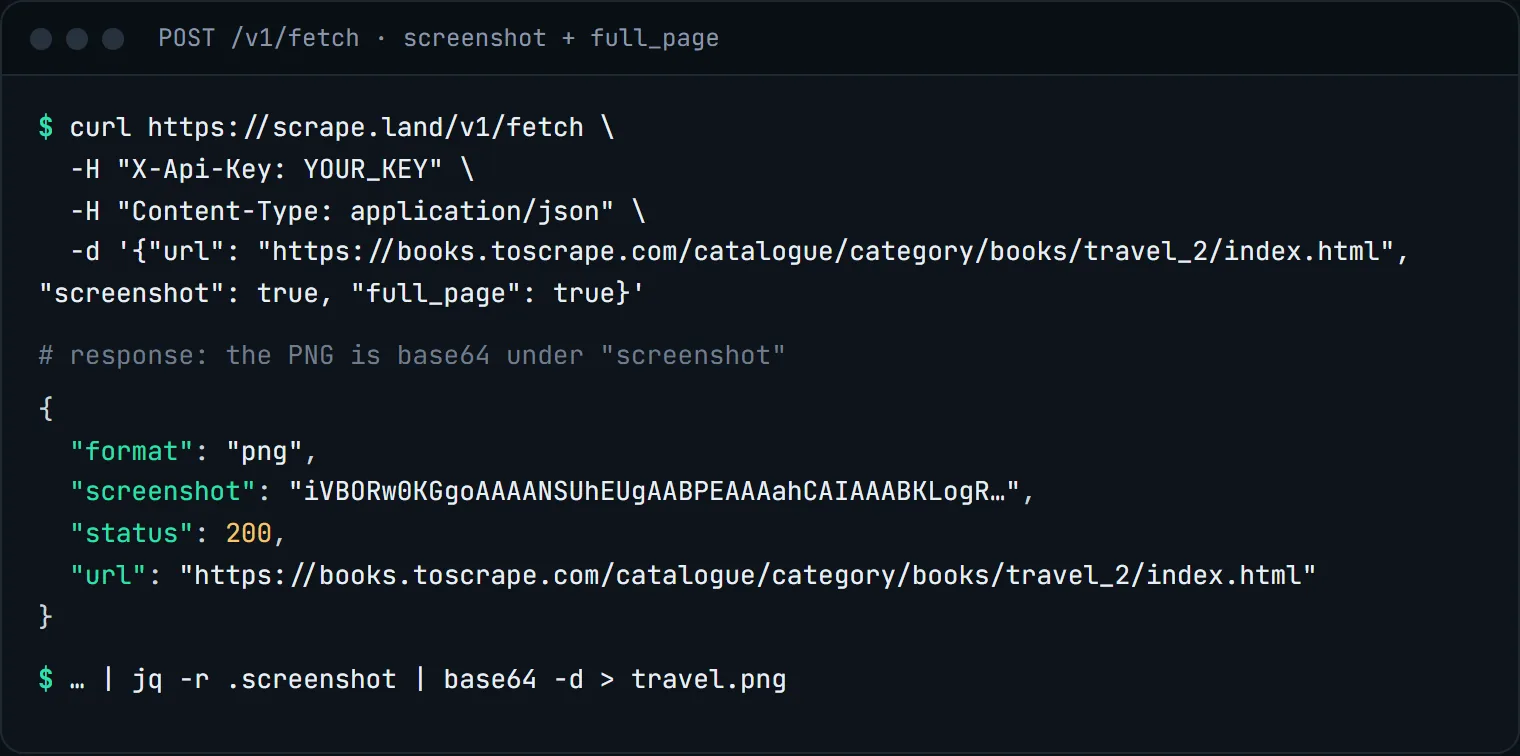
Send "screenshot": true to POST /v1/fetch. It implies render, so the page is loaded in a real browser first. By default you get the viewport, a 1280 by 800 desktop window. Add "full_page": true to capture the whole page from top to bottom.
curl https://scrape.land/v1/fetch \
  -H "X-Api-Key: YOUR_KEY" \
  -H "Content-Type: application/json" \
  -d '{"url": "https://books.toscrape.com/catalogue/category/books/travel_2/index.html",
       "screenshot": true,
       "full_page": true}' \
  | jq -r .screenshot | base64 -d > travel.png
The response is JSON. The PNG is base64-encoded under screenshot, next to "format": "png", the status of the page and its url. The jq and base64 pipe above decodes it straight to a file.
And this is the PNG that came back, the full height of the Travel category page, all eleven books:
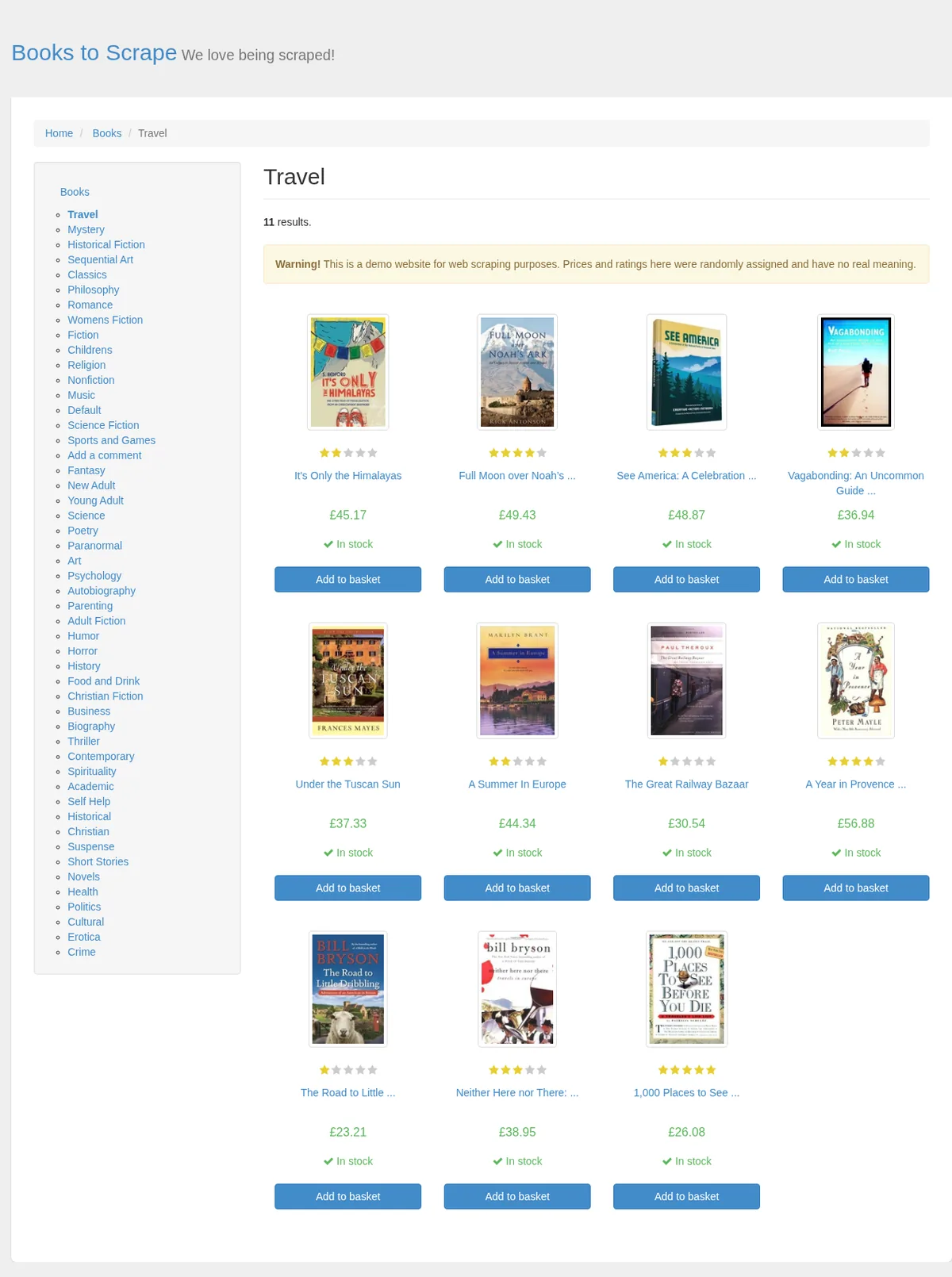
full_page capture: the whole scroll height in one image, not just the first screen.The same thing in Python
import base64
import requests

r = requests.post(
    "https://scrape.land/v1/fetch",
    headers={"X-Api-Key": "YOUR_KEY"},
    json={
        "url": "https://books.toscrape.com/catalogue/category/books/travel_2/index.html",
        "screenshot": True,
        "full_page": True,
    },
    timeout=150,
)
r.raise_for_status()
with open("travel.png", "wb") as f:
    f.write(base64.b64decode(r.json()["screenshot"]))
Mobile screenshots
Add "device": "mobile" to render the page as a phone: a 390 by 844 touch viewport at 3x scale with a mobile Safari user agent. Responsive sites serve their mobile layout, which is what you want when you are checking how a page looks on a phone.
Get rid of cookie banners first
Many sites cover the page with a consent banner, and a screenshot captures it faithfully. Rendered requests accept actions, steps that run before the capture, so you can click the banner's button first:
{"url": "https://webscraper.io/test-sites/tables",
 "screenshot": true,
 "actions": [
   {"type": "click", "selector": "button[data-tid=banner-decline]"},
   {"type": "wait", "ms": 1000}
 ]}
To find the selector, fetch the page once with "render": true, "block_resources": true (1 unit) and search the returned HTML for the button text. The tables tutorial shows the before and after of exactly this banner.
Things to know
- Screenshots and extraction do not mix in one call. A request with
screenshotplusfieldsorpromptis refused with a message that says why: one request returns either an image or page data. Take the screenshot with/v1/fetchand extract in a second call. - Images and
block_resources. Blocking resources also blocks them in the screenshot, so the shot will be missing its images. Leave it off when you want the page to look right. - Wait for late content. Add
"wait_for"with a CSS selector to hold the capture until that element exists, for example a chart or a price that loads after the page. - Country.
"country": "de"renders the page from a German exit IP, which is how you check what a localized page shows visitors there. See geo-targeted results.
What it costs
A render with a screenshot bills 10 request units, whether it is the viewport or the full page. With "block_resources": true it bills 1, but the images are then missing from the shot, so that is only worth it for text-only pages. A render that fails is not billed. On the Starter plan ($99 for 600,000 requests a month) that is 60,000 screenshots. See pricing.
Next steps
All render options, including device and actions, are in the docs. To act on a page before capturing it, see fill a form and click a button. For a text version of a page instead of a picture, see clean Markdown for LLMs. Create a free account and take your first screenshot.